



Programming for non-programmers
Part 2 - Variables
In the previous part I described the use of variables to hold data, but the subject was only touched upon at a very superficial level. Because variables are such an important part of programming I shall take time now to describe the different types and how they are used in more detail.
There are three main type of variable, which are:
- Real
- Integer
- String
The first two, Real and Integer, are used to hold numbers. An alternative name for a Real variable is Floating Point, and this gives a clue to the difference between them. A Real variable can hold a number which has a decimal component, like 2.475. An Integer can only hold whole numbers. If you try to store a number with a decimal part in an Integer variable then the decimal part will be lost. So, if you try to store 2.475 in an Integer variable it will be truncated to 2.
If Integers can only hold whole numbers and Reals can hold either whole numbers of decimals why bother with Integers in Basic? The reasons are speed and accuracy. Computers don't naturally understand decimal fractions, they work only in whole numbers. Quite a bit of 'massaging' has to be done to make them use those strange, human, decimal numbers, so Integers are very much faster. They can also be more accurate as nothing is lost in 'translating' them into a form that the computer can understand, as we shall see later.
It is therefore good programming technique to use Integer variables wherever possible. In fact, experienced programmers use Integers almost exclusively, even when dealing with obvious decimal data like cash.
So, how do we differentiate between Real and Integer variables? In BBC Basic it's very simple. You just add a '%' percentage sign to the end of the variable name.
To clarify: adding a % to the end of an existing Real variable name doesn't change it into an Integer, and leaving the % off the end of an Integer doesn't change it into a Real. The % (or lack of it) is part of the variable name. When it is created basic will allocate the type of storage required for an Integer if it has a % on the end of the name and the space required for a Real if it doesn't. So:
- number
- number%
are two different variables.
So that you understand the difference use Edit to create the following short program. The example programs have been included on the disc (in the EXAMPLES directory alongside this file), but it will still be better if you type them in yourself. That way you will continue to gain experience with creating and debugging programs.
    REM  Illustrate difference between Real and Integer
    integer% = 1.8 + 2.4
    real = 1.8 + 2.4
    PRINT integer%
    PRINT real
    END
You should be able to predict what will happen when you Run this program. The Integer variable 'rounds down' the number but the Real stores it in full.
By now you should also have realised that we used only Real variables in the VAT calculator program described in the last part, and the reason why.
Everybody needs string
The third type of variable is the String. This is nothing to do with the stuff used to tie up packages, it means 'a string of characters', and it is a way of storing text.
In BBC Basic the maximum permitted length of a string is 255 characters. A string variable is defined and recognised by having a '$' (dollar) terminating character. Strings are always enclosed in double quotes when assigned. For example:
    name$ = "Fred Smith"
    PRINT name$
At this point it is worth spending a little more time to make sure you appreciate the difference between the Real and Integer numerical variables and the string variable. Some people have trouble with this. The former are numbers. They can be added together, subtracted, multiplied, in fact, have all sorts of mathematical functions applied to them. The latter are words or letters. For example:
    first% = 42
    second% = 64
    PRINT first% + second%
would produce the result '106', but:
    first$ = "42"
    second$ = "64"
    PRINT first$ + second$
would produce the result '4264'.
In the first case the two numbers 4 and 6 are added together, in the second case the two 'words' 42 and 64 are added together. In fact, this 'adding together' of strings is more properly called concatenation. They're joined together, not added together, the '+' sign is just a convenient symbol to use for the action.
In some variants of Basic where the distinction between numerical and string variables is not so clearly defined in their names it is possible for inexperienced programmers to get thoroughly confused. For example, with some types of basic which don't use the '$' you could use:
first = "42"
When you do this these versions of Basic would automatically make 'first' a string variable, but from then on you would have to remember that it was a string variable, it wouldn't be obvious from the variable name. With BBC Basic the '$' suffix always makes the distinction clear, and if you try to assign the wrong sort of data to a variable a 'Type mismatch' error will be produced.
Expressions and string/number conversion
It is part of the 'job description' of Basic that wherever you can use a variable or a constant, you can use an expression. I have mentioned expressions before, and used them in earlier programs, but it's worth repeating what they actually are.
An expression is anything which can be evaluated when the program is run. For example:
first% = 4 + 5
Here '4 + 5' is an expression. When the program is Run the expression '4 + 5' is evaluated and the result (9) is assigned to the variable first%. There's nothing new in this, we've done it before, but from now on things might get a little more complicated and it's a lot easier to understand what's happening with this simple example, though the principle always remains the same.
Although in BBC Basic there are only the three main types of variable mentioned to consider, different languages and variants of Basic may have others. For example, in BBC Basic an integer can be a positive or negative number, with a range of from -2,147,483,648 to +2,147,483,647 (don't worry about why these particular values, we'll get to that later in the series). A cardinal is a type of integer that can be only positive, and so it can hold a bigger number.
Whatever form the variable takes, it will inevitably fall into one of two groups, it will be a numerical variable or a string variable, and all languages will need some way to convert between the two. We've already been doing this, or rather, allowing Basic to do it in the background. Every time a program gets input from the keyboard we type a series of character, and Basic converts these (assuming they are numerical characters) into a number. When the program needs to display the answer to a calculation it must convert the number to a string of characters and display them.
The routines for doing this are called functions. Functions are pieces of code which performs certain actions or calculations and 'return' a result. They may be pieces of code you write in your program to perform a specific task or 'built in' to the language. In BBC Basic we can use a function rather like an expression:
variable = function
What this does is call the function and assign the value returned by it to the variable. 'Call' is the term used when a program leaves the main 'flow' of the program code and branches off to a sub-section, returning to the same place in the main part of the program afterwards. Functions may have parameters passed to them when they are called. Where a function is performing a conversion or calculation this will usually be necessary as we are going to have to give the function the data we want it to use. In fact, a function is a sort of miniature program itself, and should ideally be designed to be almost completely self contained.
The two functions incorporated into Basic which perform conversions between numbers and numeric
strings are VAL and STR$. VAL converts a number into a
string, and STR$ converts a string into a number.
Note that, as with Basic keywords, the names of these functions are in upper case. When you write your
own functions you can give them lower case names, just as with variables. The parameters passed to these
functions, as with all other functions, are enclosed in brackets after the name. For example:
number = VAL("142")
will assign the value 142 to the variable number. In a case like this, of course, it would be easier to just use:
number = 142
but things aren't always that simple.
STR$ works the other way, for example:
number$ = STR$(142)
You've probably already noticed it yourself, but the parameter passed to VAL is a string, so if it's a literal string, as in the example, it's enclosed in double quotes. The parameter passed to STR$ is a number, so it isn't.
One final point. As with almost everything else in Basic you can pass expressions to functions. For example:
number$ = STR$(64+32)
would make number$ equal to the sum of 64 and 32, or "96".
Basic and line numbers
This might seem like a drastic change of subject, but bear with me, there's a reason for introducing it here. When you write a Basic program, every line is given a sequential number. This is used by Basic to keep track of program execution, but, most of the time, it doesn't matter to you and you don't need to know what these numbers are.
Look at the icon bar menu in Edit and follow 'BASIC options' and you will see that the first item on the sub-menu is 'Strip line numbers'. By default this is 'ticked'. Click on this so it is no longer ticked and load a Basic program into Edit. You will see that each line begins with a number. Depending upon what editor was used to write the program these will either be sequential numbers, or in increments of 10. Now you've seen them you can reset Edit to strip the line numbers. As a programmer they are of no interest to you except for one special purpose.
The reason you need to know about line numbers is because sometimes things go wrong. If you have typed in the programs described in the first article you may already have experienced this when you tried to run them. The error messages probably weren't very helpful because you didn't know where to look for the problem. So far the programs have been fairly short, but as they get bigger you will need a way to find out not only what the problem is, but where to look for it.
Statement delimiters
So far all the examples I've given have had one Basic statement or instruction on a line. It is possible to put more than one statement on a line, but you can't just join them up, one after the other. Just as in a written language we use a full stop to indicate the end of one sentence and the start of another, so in Basic we use the ':' (colon) character to indicate the end of one statement and the beginning of another. For example:
    first% = 24
    second% = 56
could be written as:
first% = 24 : second% = 56
As usual, the extra spaces are merely for clarity and are not necessary.
You can put several statements on a single line like this, although there are some potential problems that we'll deal with later.
Error trapping
BBC Basic has its own 'default' error handling routine, which you've probably already seen. If something
is wrong you'll get a message like Mistake or Missing "" and the program will just quit. However, you
don't have to put up with this minimal information. It is possible to 'trap' errors, and make Basic go to your
own error handling routine where you can deal with the error.
Later we will use this to do things like stopping a program from crashing because you've just tried to save hours of work to a disc which doesn't have enough room, but for the moment its main use is going to be to tell us where in our program code the error has occurred so that the inevitable typing mistakes can be easily found and corrected. Which, of course, is why I'm introducing the subject now before you get fed up trying to find out where those 'Mistakes' actually are.
When an error occurs Basic stores the error message, the error number, and the program line where the error occurred respectively in three special variables REPORT$, ERR and ERL. The error number is an individual number assigned to every possible error and is mainly used to trap specific errors. We can't alter or assign values to these variable, but we can 'read' them and so find out what's gone wrong.
The way we 'trap' an error is to use insert a line:
ON ERROR <do something>
where <do something> is whatever we want the program to do when it finds an error.
The ON ERROR isn't used in the context of switching something on, but could be interpreted as 'when you
encounter an error come here'. The code on the line after the ON ERROR statement is then executed.
We can use this, together with what you have already learned, to create a simple 'error handler' that can be
used to help locate and report typing mistakes in our programs. Near the start of the program include the
line:
ON ERROR PRINT REPORT$ + " at line " + STR$(ERL) : END
This looks a bit more complicated than some of the things described so far, but there's nothing new here.
The first part is the ON ERROR statement which tells Basic to come to this line if it discovers an error.
Next there is the keyword PRINT, so you will know that what follows has to be something that can evaluate
to text so that it can be displayed on screen.
This is actually three separate items, using the '+' symbol to join them up into a single string The first is REPORT$, and this will be the error message from Basic. The next is just a literal string, " at line ". This leads to the third item, which takes the Basic variable ERL which tells us where the error occurred and converts it to a numerical string. So, the line which appears on the screen will be in the form:
<error message> at line <line number>
After this there is a statement delimiter, which signals the end of the PRINT statement. Then comes the
keyword END which will terminate the program. You might not always want the program to terminate when
an error occurs, but here we are mainly concerned with trapping typing errors in the program, so there's no
point in trying to continue. If the keyword END was not added to the end of the line the program would
carry on with the next line and run into the same error all over again.
So how does it work in practice? Enter the following program:
    REM Test error handler
    first% = 24
    second% = 48
    sum% = first% + second%
    PRINT sum%
    END
This is pretty simple stuff. It just assigns numbers to two variables, adds them together and puts the sum in a third variable, then prints the result. But what would happen if we had made an error typing the word second% in the 4th line and written:
    REM Test error handler
    first% = 24
    second% = 48
    sum% = first% + seconf%
    PRINT sum%
    END
There obviously won't work, but without error trapping there will just be a message 'Unknown or missing variable' which won't help us to track down where the mistake is.
So, let us introduce our own error trap and see if it's any better.
    REM Test error handler
    ON ERROR PRINT REPORT$ + " at line " + STR$(ERL) : END
    first% = 24
    second% = 48
    sum% = first% + seconf%
    PRINT sum%
    END
Note that the error handler must be near the start of the program. If not, Basic won't 'know' about it and will just use the default error handler. Now run the program again and you should see:
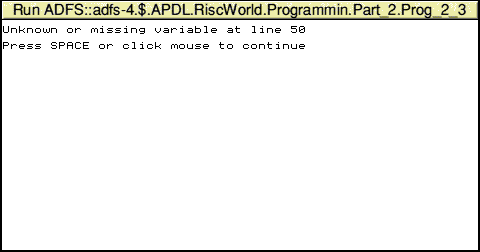
This is an improvement because it gives us the line where the error occurred, but there's one small difficulty, it tell us the error was in line 50 and the program only has seven lines!
The reason for this is that I used Edit to write the program, and by default Edit numbers Basic lines in increments of 10. If you used something else to write your program where line numbers were incremented in 1's you might have been told that the error occurred at line 5. This isn't much of a problem, because you can just divide the line number by 10 and use the 'Goto line' function of the text editor (in Edit press F5).
The CASE structure
In the first part of this series I described the use of the IF ... THEN ... ELSE structure to enable a program to
choose between different actions. This structure is fine when there are only one or two possible options, but
it could get extremely complicated if there are several. A much more elegant system is the CASE structure.
This can have a very large number of options, but only one of them will be selected and acted upon. It looks
like this:
    CASE <variable> OF
    WHEN <something> : <do this>
    WHEN <something> : <do this>
    WHEN >something> : <do this>
    ENDCASE
In addition there's another option, OTHERWISE, which will be used if none of the others fit, but this is
optional. So the complete structure becomes:
If you do not include the OTHERWISE option then, if the conditions don't match any of the other options,
nothing will happen.
It is important to note that there must be absolutely nothing on the first line after the word 'OF'. Even a
single space, which might pass unnoticed in your editor, will stop the structure from working correctly.
The <variable< in the first line can be any type of variable, string or numeric, or even an expression. After
each WHEN keyword a value will be written, and this must be of the same type as the variable. The value
can be a literal value, or another variable. If the variable on the first line is equal to one of the values after
a WHEN then the code on the following line or lines up to the next WHEN (or OTHERWISE or
ENDCASE) is executed.
As soon as a match is found all the other options are ignored, so if <variable> happens to match more than one option, only the first one found will count.
This is a very powerful structure, and is the essential programming tool for multiple-choice selection, so it's worth spending a little more time on it. Type in the following program, and see if you can work out exactly what it's going to do before you try it, and, more important, how it does it.
    REM Demonstrate CASE structure
    ON ERROR PRINT REPORT$ + " at line " + STR$(ERL) : END
    INPUT "Enter a number " number%
    CASE number% OF
    WHEN 1 : PRINT "You entered ONE"
    WHEN 2 : PRINT "You entered TWO"
    WHEN 3 : PRINT "You entered THREE"
    WHEN 4 : PRINT "You entered FOUR"
    WHEN 5 : PRINT "You entered FIVE"
    WHEN 6 : PRINT "You entered SIX"
    WHEN 7 : PRINT "You entered SEVEN"
    WHEN 8 : PRINT "You entered EIGHT"
    WHEN 9 : PRINT "You entered NINE"
    OTHERWISE : PRINT "I don't understand " + STR$(number%)
    ENDCASE
    END
You will notice that I've included the error handler line at the start of the program. We can now go back and have another look at the VAT calculator and see if we can improve it. The final program was:
    REM  Program to add or subtract VAT from a price
    PRINT "Do you want to -"
    PRINT " 1. Add VAT to the net price"
    PRINT " 2. Calculate net price from VAT inclusive price"
    REPEAT
    INPUT "Please enter 1 or 2 " choice
    UNTIL choice = 1 OR choice = 2
    INPUT "Enter price " price
    IF choice=1 THEN result = price * 1.175 ELSE result = price / 1.175
    PRINT result
    END
As this uses a menu selection it could be made more elegant with a CASE structure, and we could also add an option to quit the program.
    REM  Program to add or subtract VAT from a price
    ON ERROR PRINT REPORT$ + " at line " + STR$(ERL) : END
    REPEAT
    PRINT
    PRINT "Do you want to -"
    PRINT " 1. Add VAT to the net price"
    PRINT " 2. Calculate net price from VAT inclusive price"
    PRINT " 3. Exit the program"
    INPUT "Please choose " choice%
    CASE choice% OF
      WHEN 1 : INPUT "Enter price " price
               result = price * 1.175
               PRINT "Price with VAT is " result
      WHEN 2 : INPUT "Enter price " price
               result = price / 1.175
               PRINT "Price without VAT is " result
      WHEN 3 : END
      OTHERWISE : PRINT "You must enter 1, 2 or 3"
    ENDCASE
    UNTIL choice% = 3
    END
Don't worry about the indented lines. The extra spaces are ignored when the program is Run, but they help to make it easier to 'read' and see how the various options operate.
The new program takes what you learned in the first part and adds some of the new things from this session.
Firstly there's the error handler. This will be included in all programs from now on because as they are
getting more complicated typing mistakes are bound to occur. Next the menu now has three items. You can
choose between adding or subtracting VAT or quitting the program. Placing the main section of the program
inside a REPEAT ... UNTIL loop means it will continue to operate until you decide to quit.
The OTHERWISE option in the CASE structure will just prompt the user to enter the correct number if
something other than 1, 2 or 3 is entered.
In the next instalment we'll make a few more improvements to the VAT calculator program and I'll describe another family of variables, the array.
David Holden
Last Edit: Thu,02 Apr 2026